ZOLL and LIFEPAK Monitor Ingestion in Your ePCR
How Mobile Medic pulls 12-leads, STEMI flags and vitals from ZOLL and LIFEPAK monitors into the chart, so crews stop photographing curled thermal paper.
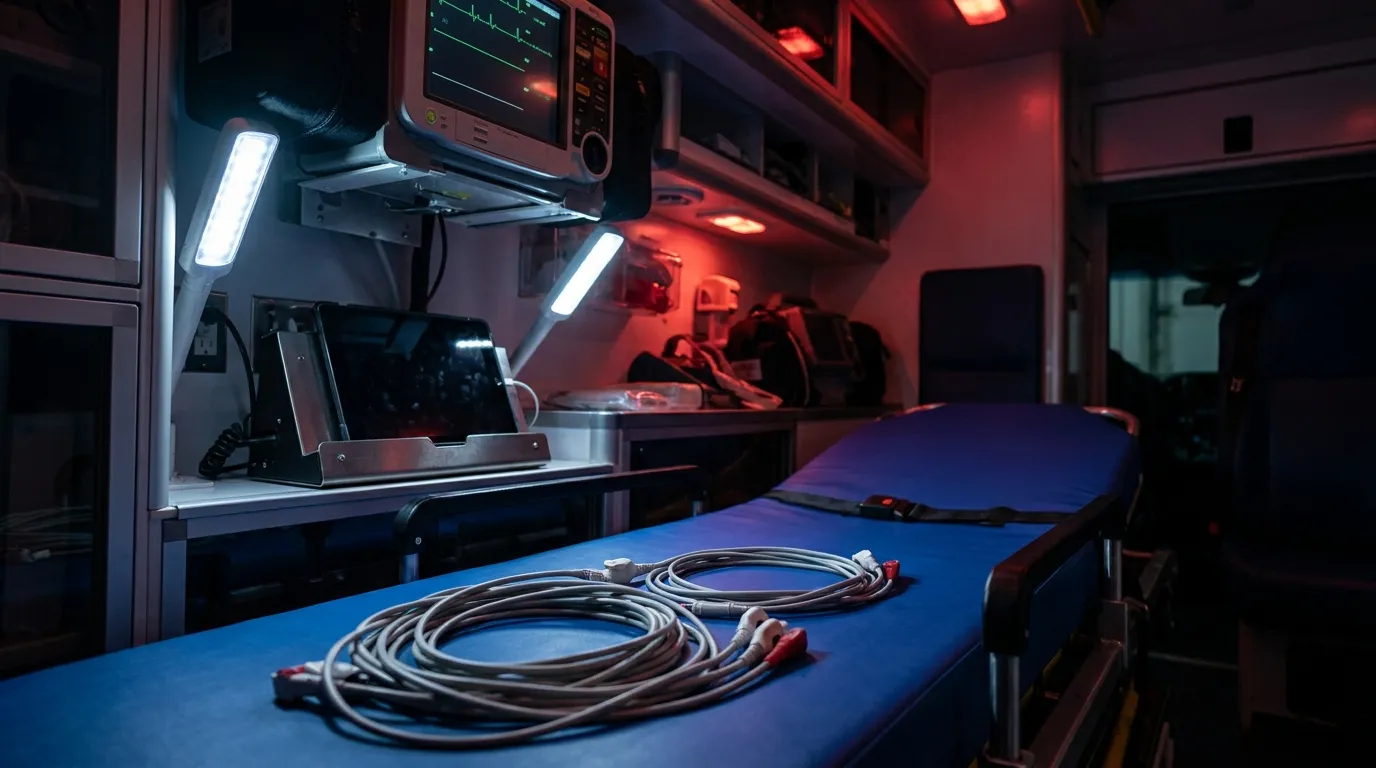
With ZOLL and LIFEPAK monitor ingestion in Mobile Medic, the monitor's data goes straight into the chart. ZOLL monitors can pair with the iPad right at the cot, and LIFEPAK cases come in through Stryker's LIFENET cloud, so 12-leads, STEMI interpretations and vital sign trends land in the record without anyone photographing a strip. Fewer paper scans, less retyping, and no waiting on a monitor modem that can't find a tower.
Anybody who's worked a chest pain call knows the rhythm. Leads on, 12-lead acquired, aspirin, line, nitro if the pressure holds, and you're moving. The last thing you want is to be thumbing heart rates and SpO2 readings into a tablet while your patient is grabbing their chest.
And then there's the old workaround: snap a photo of the thermal paper with the tablet camera. The strip is curled, the cab light is bad, there's glare, and the ED physician squinting at it later can't make out the ST segments. Pulling the digital file from the monitor skips all of that.
Why do monitor-to-chart transfers break on scene?
Two things tend to get in the way. The first is coverage. Basements, metal buildings, parking structures and long rural stretches all eat cell signal. If the monitor needs its own cellular connection to send a case, a dead zone means nothing moves, and crews end up typing vitals by hand back at quarters or leaving gaps.
The second is mixed equipment. On a lot of mutual aid calls, the first-due engine is carrying one brand of monitor and the transport unit is carrying another. Hunting for cables, memory cards or the right sync steps at handoff burns time you don't have. We cover the common failure points in more detail in our post on cardiac monitor to ePCR transfer fixes.
So a useful setup has to handle both brands, and it has to work at the cot when the cell network doesn't.
How does ZOLL and LIFEPAK monitor ingestion work?
The two brands come in by different routes, and that's on purpose.
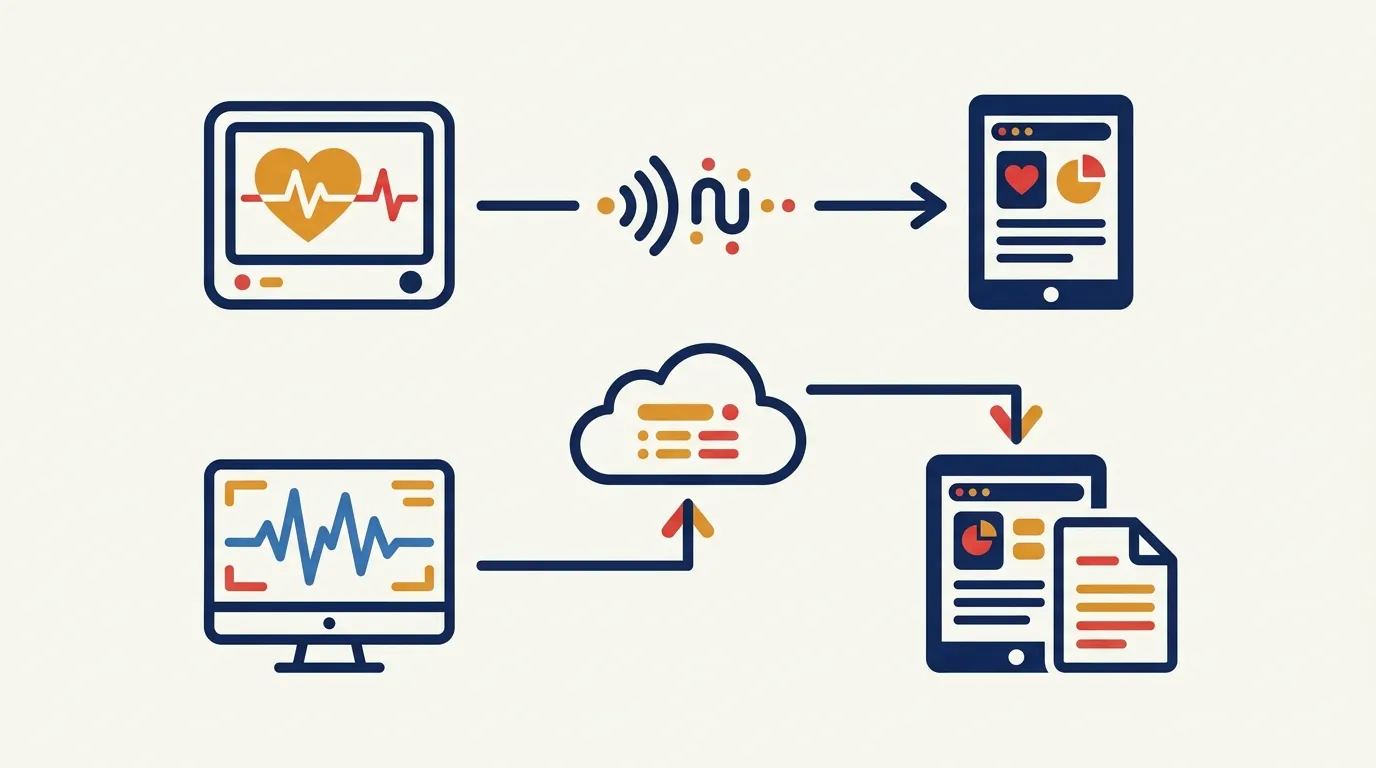
ZOLL: a direct link at the cot. Mobile Medic's iPad app includes ZOLL's own connection software, so the tablet can talk to a ZOLL monitor over a local Wi-Fi or Bluetooth link. No internet needed. It works the same in a concrete basement as it does on a back road with one bar of service. Here's how it goes on a call:
- Find the monitor. The medic taps the monitor sync option, and the app lists ZOLL units it can see nearby.
- Pair it. The medic picks their rig's monitor from the list and the app links to that unit locally.
- Pick the case. The crew looks at the cases stored on the monitor and picks the current patient.
- Pull it in. The 12-lead and the vital signs come into the chart on the iPad, the 12-lead as a clean report and the vitals in the chart's vital sign fields.
Because that link is local, you can bring in the 12-lead and vitals with no cell data at all. The chart keeps working offline and syncs later, which we explain in how offline-first ePCR works. Imported vitals keep the monitor's own time stamps. That's worth knowing, because the monitor clock and your CAD times won't always agree, a problem we dig into in CAD timestamp and monitor clock mismatch fixes.
Mobile Medic can also bring in ZOLL cases, including their vital sign trends, through ZOLL's cloud service for agencies that already send cases that way.
LIFEPAK: through LIFENET. For crews running a LIFEPAK 15 or LIFEPAK 35, the path runs through Stryker's LIFENET system. When the monitor transmits a case to LIFENET, Mobile Medic receives it through an automatic data hand-off, reads it, pulls out the 12-lead report and vitals, and attaches them to the incident.
Medics can also search LIFENET records right from the iPad by time window, monitor serial number or patient name, and import the 12-lead and vitals into the chart they're working on. The search covers every case sent under your agency's LIFENET account, so it helps when one of your engines transmitted a 12-lead before the ambulance got there. Your agency's LIFENET account has to be linked to Mobile Medic first.
How does a digital import compare with a photo?
A photo of a strip is a picture. A digital import is the monitor's actual data, and it reads cleaner for everyone downstream.
| What you need | Photo of the thermal strip | Digital import from the monitor |
|---|---|---|
| Waveform clarity | Glare, blur and curled paper | Clean tracing from the monitor file |
| 12-lead interpretation | Hard-to-read printed text | Monitor interpretation, such as a STEMI flag, comes with it |
| Vital signs | Retyped by hand | Trends pulled into the chart |
| Paper life | Thermal paper fades with heat and sun | Stored with the record |
| Later review | Loose image to dig up | Tracing attached to the chart |
Shocks and pacing don't come over as separate chart entries, so document those yourself. The full ZOLL case file from the cloud route, or the LIFEPAK case summary, is attached to the chart for anyone who needs to dig deeper. The point is the same either way: the facts you documented at the bedside stay readable all the way to the cath lab and the QA desk.
What do QA, the hospital and billing see later?
Getting the data into the chart is only half of it. Medical directors, QA staff, charge nurses and billers all need to see the strip in the finished record.
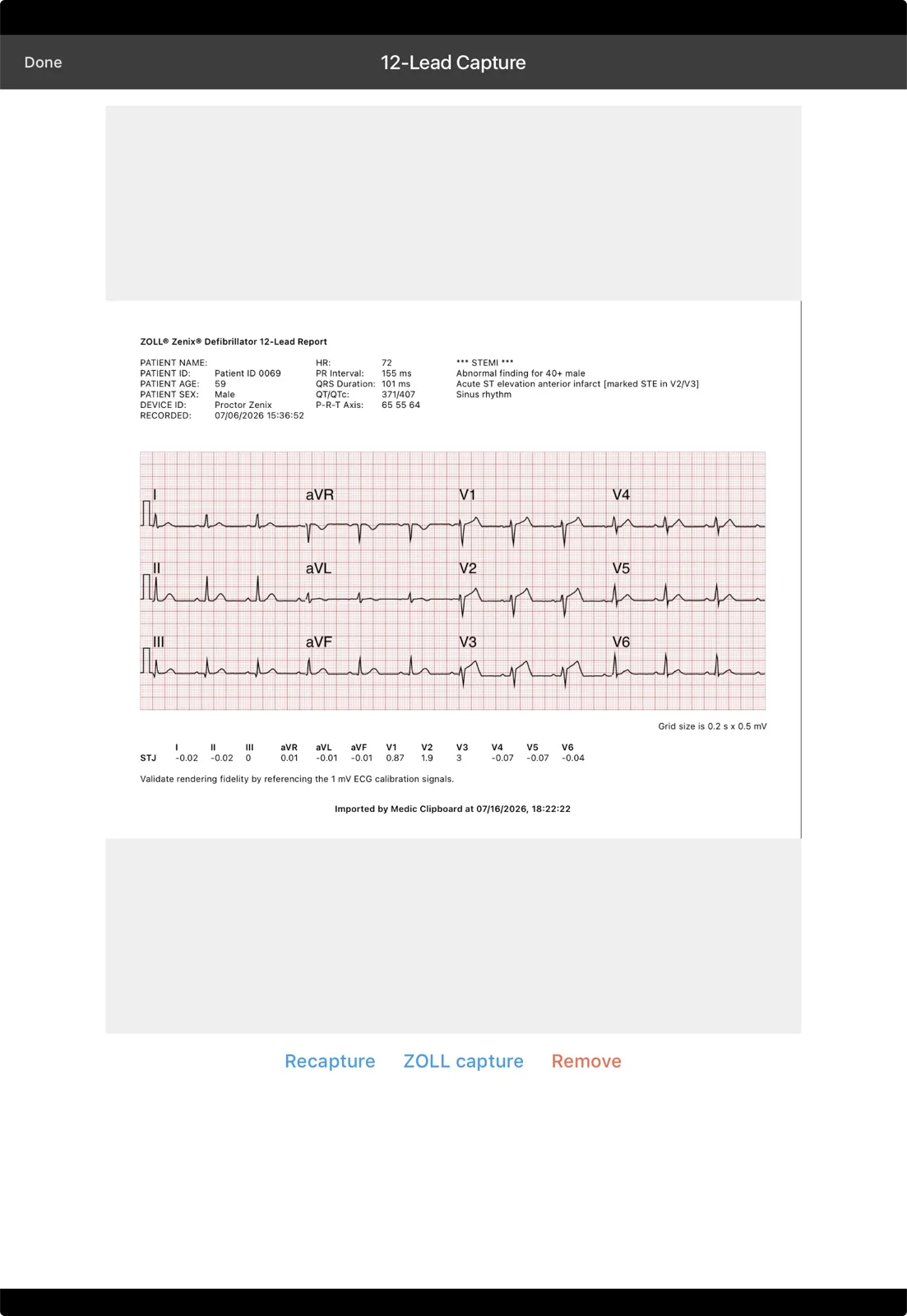
In the Mobile Medic report viewer, imported 12-lead tracings show up inline with the narrative, treatments and assessment, so a reviewer isn't opening loose files or logging into a separate portal to find the strip. That makes cardiac chart review a lot less painful, and it pairs well with the process in our prehospital cardiac arrest quality review guide.
When the chart is done, a few things follow from the same record:
- One PDF. The 12-lead is bundled into the final archived patient PDF.
- Hospital access. Receiving hospitals with access to the Mobile Medic hospital portal can review the chart and its attached 12-lead and download the PDF.
- Billing. Billers get the cardiac documentation with the chart instead of chasing it separately.
- State reporting. Mobile Medic is certified NEMSIS 3.5 compliant. Imported vitals land in the same vital sign fields crews type into, so they feed the state export like the rest of the record without being keyed in again.
What does this look like on a stormy night?
Frequently asked questions
Which ZOLL monitors can pair directly with the iPad?
Mobile Medic connects to ZOLL monitors through ZOLL's own connection software over local Wi-Fi or Bluetooth. Direct pairing is set up for ZOLL's X Series and Zenix monitors. If you run a different ZOLL model, ask us before you count on it. No extra hardware is needed for the link.
How does Mobile Medic connect to LIFENET?
Your agency's LIFENET account is set up to hand cases to Mobile Medic automatically, over a secure, authenticated connection. Once that's in place, transmitted LIFEPAK cases flow to your agency's records, and medics can also search LIFENET from the iPad.
Can I pull in vitals taken before I opened the chart?
Yes. Whether you pair with a ZOLL at the cot or pull the case through ZOLL's cloud service or LIFENET, the import lists the vital sign readings stored for that case, and the medic picks which ones to bring in. So readings taken before the iPad came out can still land in the chart.
What if several monitors are on the same scene?
During the device search, the app lists the ZOLL units it finds by serial number, along with the model when it can tell. The medic picks the one assigned to their rig, so it helps to know your monitor's serial number. Picking your own monitor keeps you from importing a mutual aid unit's case by mistake.
Does the imported data count toward NEMSIS reporting?
Yes. Imported readings fill the chart's vital sign fields, like heart rate, blood pressure, respiratory rate, SpO2, EtCO2 and temperature. Mobile Medic is certified NEMSIS 3.5 compliant, and those values go out with the state export like any other charted vitals.
Want to see monitor import in action?
Take a look at the cardiac monitor tools and the rest of the field charting features on our features page.